Everything RoadEye does

All of it on the device in your car. Nothing here needs an account, a phone app or a signal.

Reads the signs you pass

Stop, speed limit, school zone, curves, merges and more, spotted and confirmed before they are shown.

The detection model runs on the AI camera's own sensor, 15 times a second. A sign is reported once it is seen in three of the last five frames, so a flicker of a billboard never makes the screen. Speed limit signs are read for their number, and the posted limit stays on the screen until the next one.

Knows the limit, from the sign and the map

The posted limit from the last sign, the map's limit for the road you are on, and whether they agree.

With a GPS, RoadEye looks up the road you are on in its offline map and shows its speed limit, the next limit ahead and how far it is. When the map and the last sign disagree, it says so, and the sign wins.

A dashboard, not a debug window

Your speed on a dial, the limit beside it, the signs of the last two minutes, a mini-map of the next turn.

Several looks to choose from, for day and for night, drawn over the camera's view or on a plain ground. The screen is a touchscreen: tap the buttons, swipe to the diagnostics, nothing needs a keyboard.

A dash camera, when you want one

Loop recording at 720p, 1080p or 1520p, stamped with time and speed. Off until you turn it on.

Set its share of the disk from 4 to 64 GB, keep a clip on a sudden stop, or save one from your phone with a tap. Detection comes first: recording pauses rather than slowing the signs down.

A heads-up for marked police vehicles

“Police ahead · 35 m, right” once per vehicle, for the ones near enough to show their markings.

A small classifier looks at the vehicles the camera already follows. It is a heads-up, never an all-clear: it cannot know an unmarked car.

A page for your phone

What the device is doing now, where it is navigating to, the dash camera's settings, the clips, the sign photos.

Scan the QR code on the device's Help page and the phone page opens on the same Wi-Fi or hotspot. Nothing goes through a cloud.

Updates itself, and never while you drive

A new release downloads in the background and starts next time. If it will not start, the last one comes back.

One install line sets everything up. After that there is nothing to maintain: the device checks for releases when it is online and switches to the next one at the next start.

Your drives stay in your car

Sign photos, clips and logs are kept on the device's own storage. Nothing is uploaded.

The device only goes online to check for a release and to fetch map tiles, for which only the tile's position is sent. There is no account, no app store and no subscription.
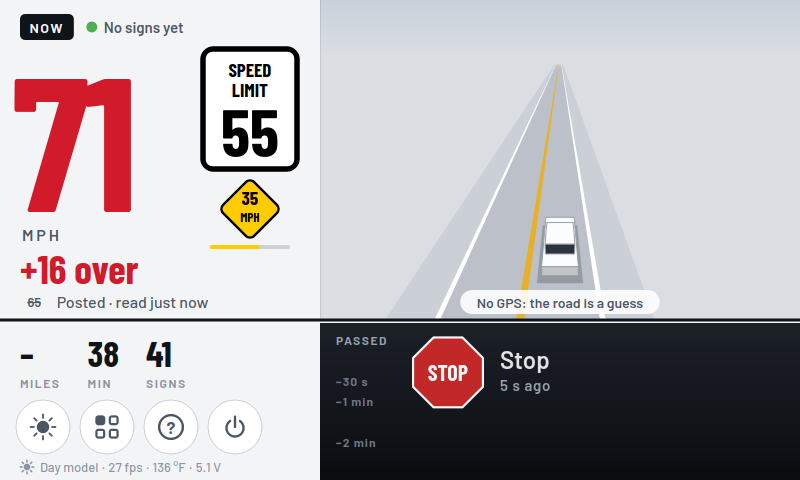
The now and next live look over the limit: 71 mph in red beside a 55 speed limit sign, +16 over, a 35 mph advisory sign just passed, the road ahead with your car in its lane
Over the limit, your speed turns red
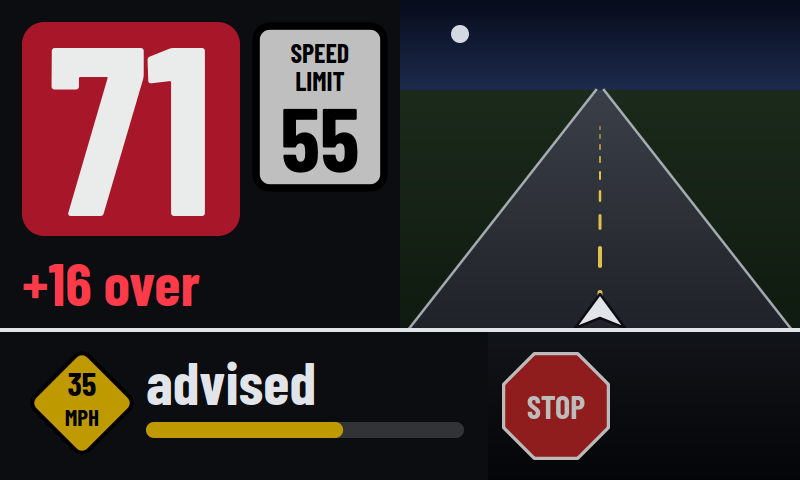
The now and next XL look at night, over the limit: 71 on red, +16 over, a 55 speed limit sign, the road ahead, and below a strip with the 35 mph advisory and a stop sign just passed
Now and next XL, at night: the biggest figures, and what you just passed below
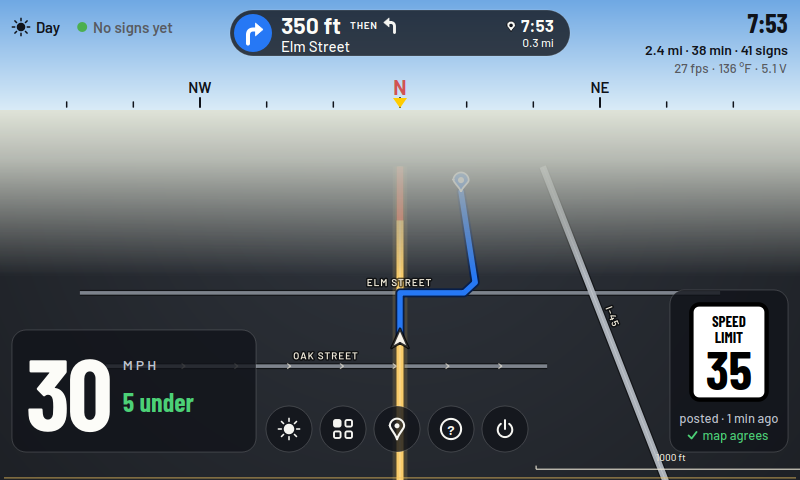
The road look while navigating: a compass strip across the top, the streets round you drawn in perspective with Elm Street and Oak Street named and the route in blue, 30 mph and 5 under at the bottom left, the 35 speed limit sign at the right
Road: the streets round you in perspective, under a compass
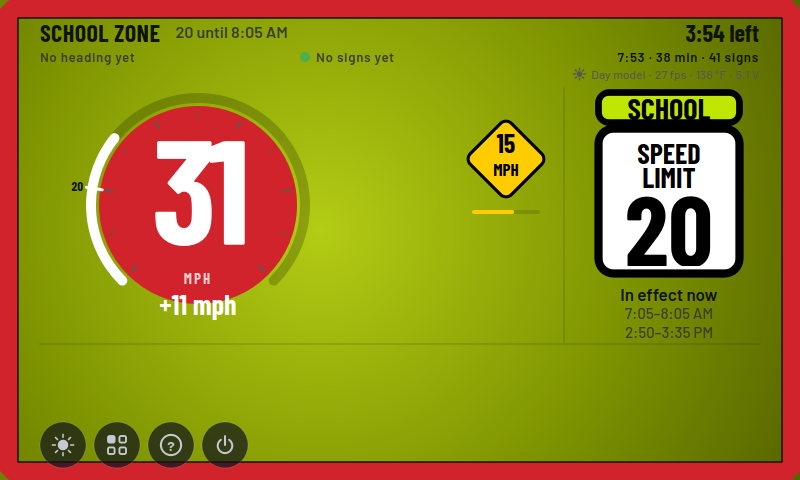
The ambient look in a school zone: the whole screen yellow-green, a red dial showing 31 mph and +11 mph, a school speed limit 20 sign, in effect now from 7:05 to 8:05 AM and 2:50 to 3:35 PM, with 3:54 left
Ambient: the screen takes the colour of the zone you are in

Beyond the dial

Tap the screen for its buttons, swipe for the diagnostics. The device's other pages, as they are today.

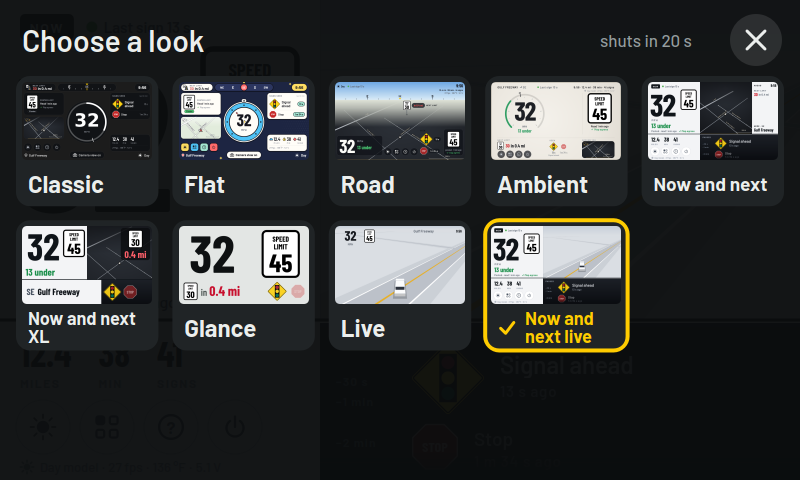
Choose a look: a grid of nine small pictures of the screen, each in one of the looks, Classic, Flat, Road, Ambient, Now and next, Now and next XL, Glance, Live and Now and next live, the last one ticked, over the dimmed driving screen
The gallery of looks: nine, each drawn with what the screen shows right now
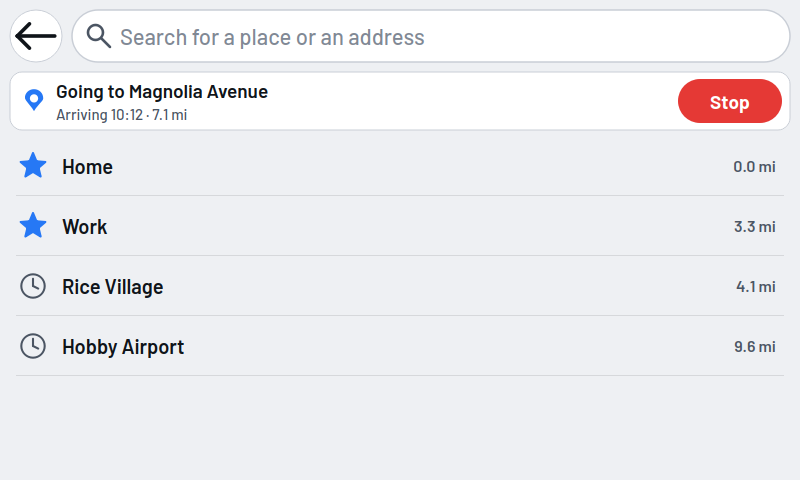
The Navigate page: a search box for a place or an address, a card saying going to Magnolia Avenue, arriving 10:12, 7.1 miles, with a red Stop button, then the saved places Home and Work with stars and the recent ones, Rice Village and Hobby Airport, each with its distance
Navigate: where you are going, your saved and recent places, and a search
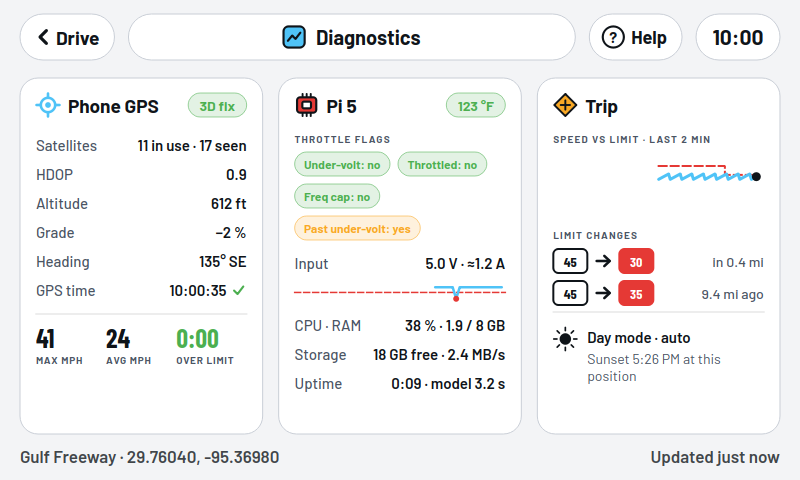
The Diagnostics page, three cards: Phone GPS with a 3D fix, 11 satellites in use, HDOP, altitude, grade, heading, the top and average speed and time over the limit; the computer's card with its throttle flags, input volts and amps, CPU, RAM, storage and uptime; and Trip, with speed against the limit over the last two minutes, the limit changes and day mode with the sunset time
Diagnostics, a swipe away: the GPS, the device's health and your trip
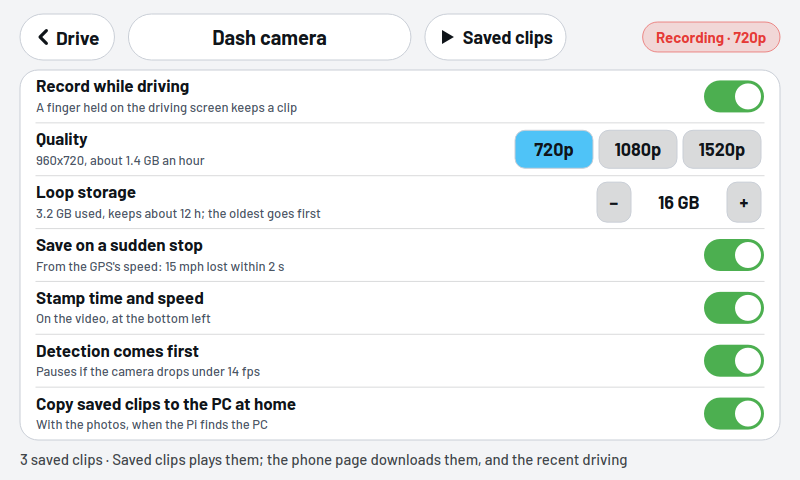
The Dash camera page: switches for record while driving, save on a sudden stop, stamp time and speed, detection comes first and copy saved clips to the PC at home, the quality 720p, 1080p or 1520p, the loop storage 16 GB with minus and plus, a Saved clips button and a chip saying recording 720p
The dash camera's settings, each applied the moment it is changed
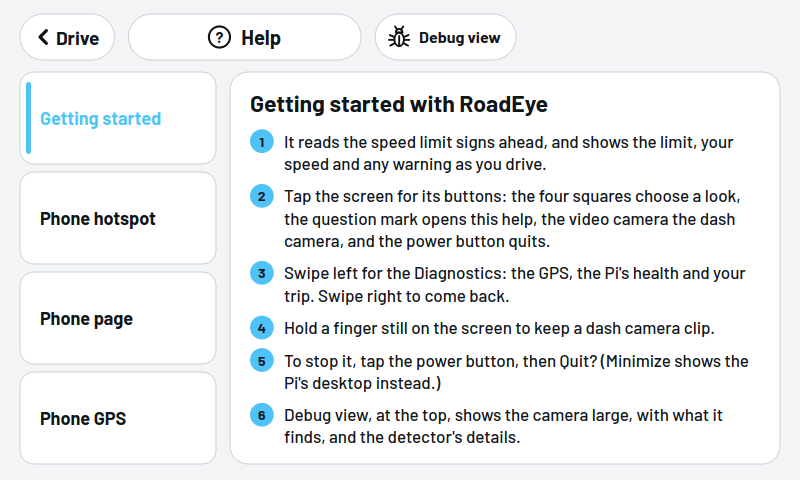
The Help page: topics down the left, Getting started, Phone hotspot, Phone page and Phone GPS, and Getting started with RoadEye as six numbered steps in the card beside them, with a Drive button back and a Debug view button
Help, on the device itself: how to use it, in a few numbered steps a topic
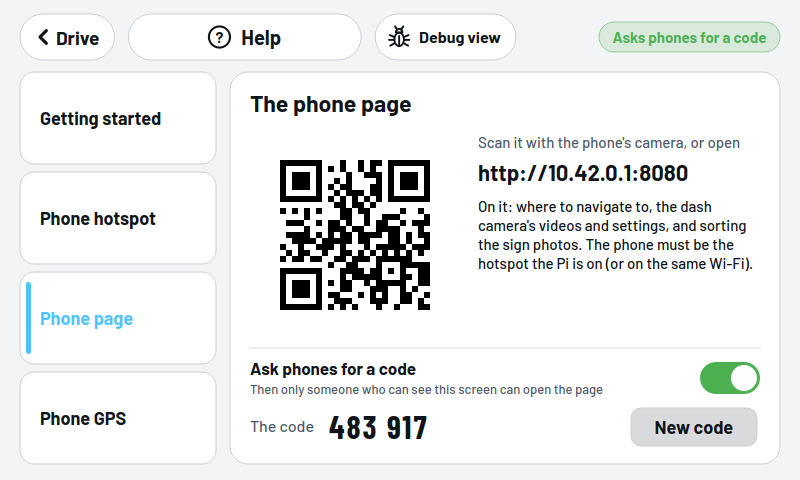
The Help page's Phone page topic: a QR code and the address http://10.42.0.1:8080 to scan or type, what the page does, and under it the lock, Ask phones for a code, switched on, with the six-digit code 483 917 and a New code button
Help, The phone page: scan the code and the page opens; the lock keeps strangers off it

On your phone

The phone page is served by the device over your hotspot or home Wi-Fi. No app to install: it follows your phone's light or dark setting and can be added to the home screen.

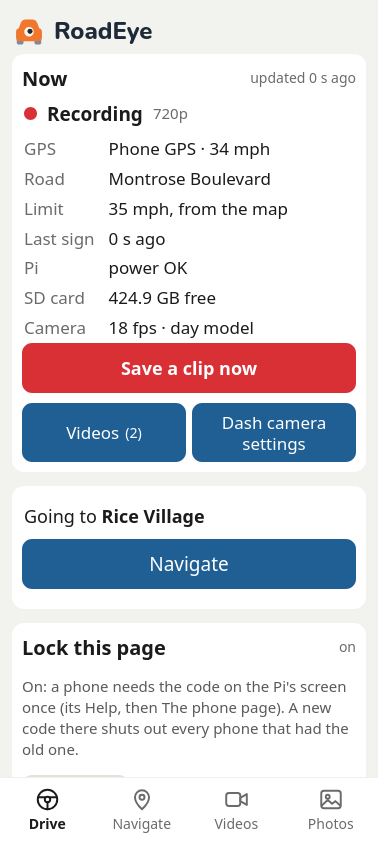
The phone page's Drive tab: a Now card saying recording 720p, Phone GPS at 34 mph, Montrose Boulevard, the limit 35 mph from the map, the last sign, the device's power, the SD card's free space and the camera's frame rate and model, a red Save a clip now button, Videos and Dash camera settings, a card saying going to Rice Village with a Navigate button, and the page's lock
Drive: what the device is doing now, and a clip saved with a tap
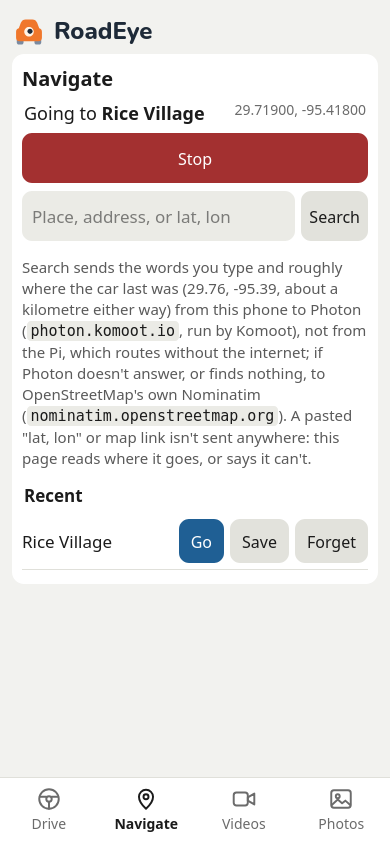
The phone page's Navigate tab: going to Rice Village with its coordinates and a Stop button, a search box for a place, address or lat, lon, a note on where the search goes, and Rice Village under Recent with Go, Save and Forget buttons
Navigate: type the destination here, and the device routes to it
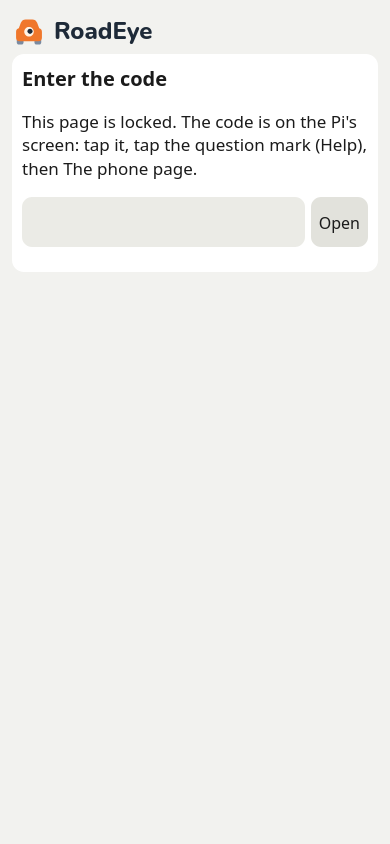
The phone page locked: a card titled Enter the code, saying the code is on the device's screen under Help, The phone page, with a box for it and an Open button
With the lock on, a phone needs the code from the device's screen, once
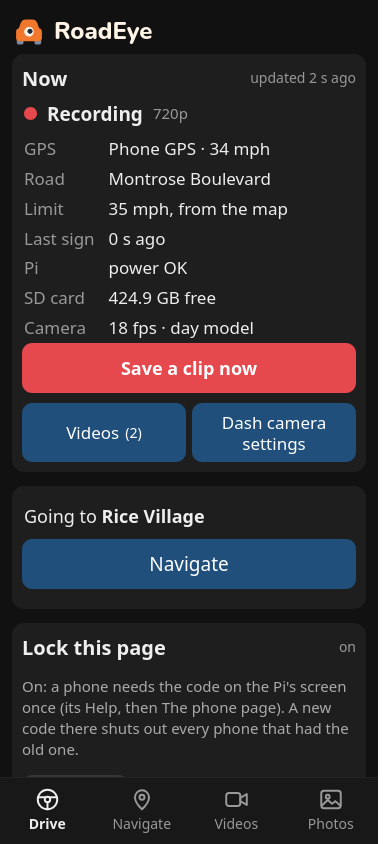
The same Drive tab in the phone's dark setting: the same cards and buttons on a dark background
In the dark, when the phone is

Hear when you can get one

RoadEye is a working device today and a product soon: a complete unit, ready to mount. Leave your email and you'll hear first when it ships.

Only to tell you about RoadEye. No list is sold or shared. Privacy.